
Over the last 18 months, video meetings and presentations have taken a huge leap forward. The pandemic distancing and lockdowns necessitated another way to still connect, and online meetings were the next best thing to being there.
Many believe that the increased use of video conferencing will continue to be a legacy of the pandemic long after it’s gone since many businesses intend to keep remote working options for staff.
80% of business leaders are planning to allow employees the option to work remotely at least part-time post-pandemic.
So, the investment in a good video meeting platform is an important one for any company putting a resilient and flexible remote support infrastructure in place.
One of the platforms that has been adding tons of features to outpace its competition is Microsoft Teams.
Teams use has skyrocketed during the pandemic, increasing over by 100 million users between April 2020-April 2021 (to 145 million). The impending end of Skype for Business also has many users transitioning to Teams.
We’ve got a rundown of some of the most exciting features that will make you want to consider using Teams for your internal and external video conferences, webinars, and online presentations.
Features That Will Make You Want to Move to Teams for Virtual Meetings
New Webinar Capabilities
One of the most useful features being added to Teams is the support for webinar registrations. An additional cost that many companies have had recently has been needing both a video meeting application and a webinar application for presentations.
Until now, there wasn’t a great option that could do both well. Microsoft has changed that.
Teams can now do webinars as well as other types of video meetings. Users can customize a webinar registration page, choose additional questions to ask, and access post-event attendance reports (just like you find in webinar-only cloud tools).
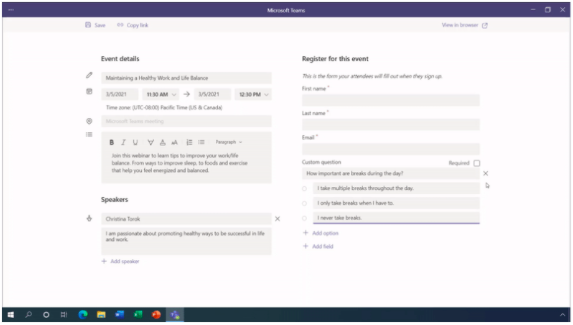
Teams images credit: Microsoft
Another helpful element of the webinar feature is the automated email that webinar attendees receive with a link to the event.
Presenter Mode
Trying to do a professional presentation for clients online can lose some of the luster. Most video apps don’t offer you much choice in how your video feed and your presentation appear on the screen.
In many, when you’re screen sharing, your video appears in a little box next to everyone else’s making it harder to keep the same engagement as you get when you’re up at the front of a room.
Presenter Mode has just been added to MS Teams and is designed to bridge that gap by giving the meeting presenter three professional-looking options for how their video and presentation appear to the audience.

You can choose from:
- Standout Mode: Your video is silhouetted in front of your presentation.
- Side-by-Side Mode: Your video and presentation share the screen at the same level.
- Reporter Mode: Your video is more prominent, with your presentation over your shoulder.
PowerPoint Live
When you’re watching a presentation during an online meeting, you generally don’t have much choice when it comes to looking at a page a little longer or skipping ahead to the next slide.
It’s a “watch but don’t touch” experience, which can lose people that think a presenter is either going too fast or too slow.
With PowerPoint Live, you can share your PowerPoint presentation more interactively with attendees. Viewers can click any slide in the presentation they like to review at their own pace.
Another bonus of PowerPoint Live is that it allows presenters access to their PPT notes without them being shown to the audience.
Live Reactions
In its efforts to make meetings better, Microsoft has added Live Reactions. This feature is designed to solve a few problems, including:
- When a presenter doesn’t know how the material is being received because everyone is on mute.
- The lack of ability to interact, which can lose an audience.
- The struggle with inviting audience interaction, but without having everyone talk over each other.
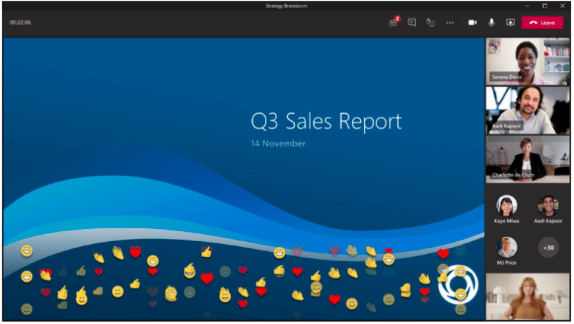
What Live Reactions does is allow people to interact with a presentation in real-time, but in a quiet way. They can click an emoji to express how they feel, giving the presenter a clue as to how to adjust.
The reactions float up and then disappear from the screen, so they’re much less distracting than having everyone come off mute. They also can be used to invite interaction to keep an audience engaged, for example asking, “So what does everyone think so far?” or gauging speed by saying “Use a thumbs up for too fast, a smiley face for too slow, or a heart for just right.”
Is Your Rhode Island Business Prepared for the Next Age of Technology?
Technology changes fast, which means businesses need to pivot easily to keep up. Onsite Techs of Rhode Island can help your company adapt to technology trends and stay out ahead of your competition with smart IT solutions.
Contact us today to schedule a consultation at 401-773-7766 or book a video call now.

